Video recording does not work
If video recording does not work in Chrome, restart Chrome first. The problem is often caused by a temporary issue between the Vaam Chrome plugin and the browser.
Restart Chrome
Section titled “Restart Chrome”- Close all Chrome windows completely.
- Open Chrome again.
- Try to record your video with Vaam.
Camera does not show or the plugin reports a permission error
Section titled “Camera does not show or the plugin reports a permission error”If your camera does not show when you record, or the Vaam Chrome plugin reports a permission error, Chrome can block camera access for the plugin. Restarting Chrome or reinstalling the plugin does not always fix this. Reset the permissions of the Vaam Chrome plugin:
-
Copy this address and paste it into the Chrome address bar. Chrome settings links do not open when you click them on a web page.
chrome://settings/content/siteDetails?site=chrome-extension%3A%2F%2Fmfnihmhpikbpioclaalnljadjbmbcppo%2F -
Press Enter. Chrome shows the settings for the Vaam Chrome plugin.
-
Click Reset permissions.
-
Open a new tab.
-
Start your recording again.
-
When Chrome asks for access to your camera or microphone, allow it.
This resets only the permissions of the Vaam Chrome plugin. Your other Chrome settings and the permissions of other websites do not change.
Reinstall the Vaam Chrome plugin
Section titled “Reinstall the Vaam Chrome plugin”If restarting Chrome does not solve the issue, reinstall the Vaam Chrome plugin. This can resolve most plugin-related problems.
Uninstall the Vaam Chrome plugin
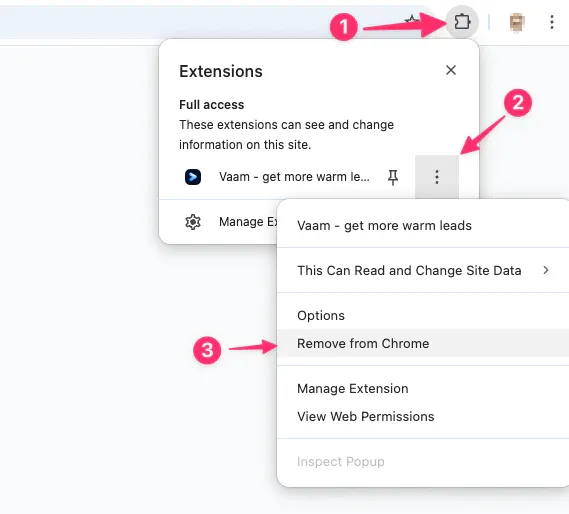
Section titled “Uninstall the Vaam Chrome plugin”- Open Chrome and click the puzzle piece (Extensions) icon in the top-right corner.
- Find Vaam in the list of extensions.
- Click the three-dot menu next to Vaam.
- Select Remove from Chrome….
- Confirm by clicking Remove in the popup.
Install the Vaam Chrome plugin again
Section titled “Install the Vaam Chrome plugin again”- Go to the Vaam Chrome plugin page.
- Click Add to Chrome.
- Confirm by clicking Add extension in the popup.
Try recording your video again after reinstalling. If the problem continues, contact support.